
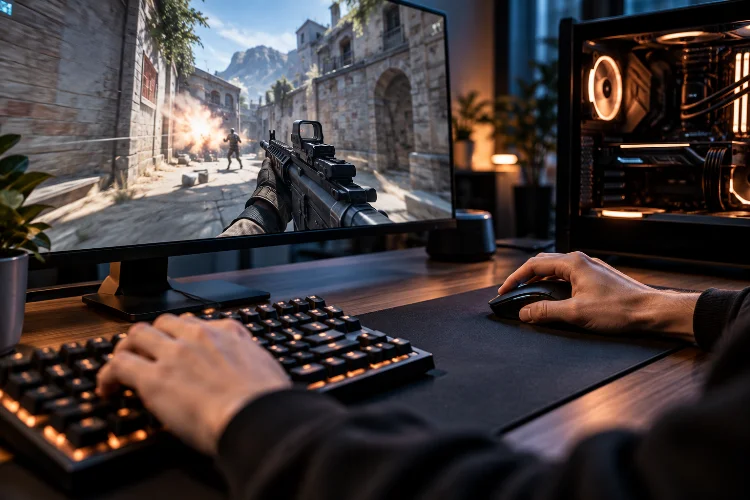
Imagine playing an intense Counter-Strike 2 match where you spot an opponent, react instantly, and click your mouse at exactly the right moment.
But somehow, your shot doesn’t register before the enemy eliminates you.
Your aim felt perfect. Your reaction was fast. So what went wrong?
Sometimes, the problem isn’t your mechanical skill. It’s the delay between your physical actions and what actually happens on the screen.
That delay is known as latency, and it can seriously influence competitive gaming performance.
In professional esports, where matches can be decided by milliseconds, even relatively small delays may affect aiming accuracy, movement timing, and overall responsiveness.
That’s why optimizing gaming PC latency has become an important part of preparing high-performance esports setups.
However, achieving low latency isn’t simply about buying the most expensive graphics card or installing a ridiculously fast monitor.
It requires understanding how hardware, software, display technology, and network performance work together.
In this guide, we’ll explore practical ways to reduce input lag, improve system responsiveness, and create a more reliable gaming environment for serious competitive play.
1. Understanding Gaming PC Latency and Why It Matters
Before changing Windows settings or upgrading expensive hardware, it’s important to understand what latency actually means.
Many gamers confuse input lag, network ping, frame time, and monitor response time, even though these measurements describe different parts of the gaming experience.
Input Latency Versus Network Latency
Input latency describes the delay between performing an action and seeing its result on your display.
When you click your mouse, the signal travels through your input device, gets processed by the operating system and game engine, passes through the graphics rendering pipeline, and finally appears on your monitor.
Every stage introduces some amount of delay.
Network latency, commonly measured through ping, describes how long it takes for information to travel between your computer and a game server.
These two measurements aren’t interchangeable.
You might have an excellent 15 ms ping but still experience sluggish mouse movement because your computer takes too long to process and display frames.
Alternatively, your local PC might feel extremely responsive while unstable internet connectivity causes delayed enemy movement and inconsistent server interactions.
For serious esports players, both issues deserve attention.
How Frame Time Affects Responsiveness
Frame time measures how long your computer takes to produce an individual frame.
The relationship between frame rate and average frame time is straightforward:
Frame Time (ms) = 1000 ÷ FPS
For example, a game running at 60 FPS produces a new frame approximately every 16.67 milliseconds.
At 144 FPS, the average frame interval decreases to approximately 6.94 milliseconds. At 240 FPS, it drops further to around 4.17 milliseconds.
These numbers explain why higher frame rates can improve responsiveness.
However, high average FPS doesn’t guarantee consistently low latency.
If your game normally runs at 250 FPS but frequently experiences sudden frame-time spikes, you may still notice stuttering during important engagements.
That’s why competitive optimization should focus on both high performance and stable frame delivery.
2. Optimizing CPU and GPU Performance for Lower Input Lag
Your processor and graphics card are responsible for much of the work involved in producing game frames.
When either component becomes a bottleneck, the entire rendering process can become less responsive.
Understanding their roles helps you make smarter optimization decisions.
Identifying CPU and GPU Bottlenecks
Competitive games often place significant demands on CPU performance, particularly when tracking numerous players, calculations, and rapid gameplay changes.
Counter-Strike 2 and VALORANT can become CPU-limited at high frame rates, depending on the system configuration and graphics settings.
Meanwhile, graphically demanding games may place greater pressure on the GPU.
An easy way to identify a potential bottleneck is to monitor CPU and GPU usage while playing.
If your GPU remains close to full utilization while the CPU has available capacity, reducing graphics settings may improve performance.
However, if the GPU isn’t heavily loaded and lowering visual quality barely improves FPS, your system may be limited by CPU performance or another factor.
Remember that total CPU usage can be misleading because individual threads may reach their limits before every core becomes fully utilized.
Adjusting Graphics Settings for Competitive Performance
Professional esports players frequently prioritize clarity and responsiveness over maximum visual quality.
Reducing expensive graphical effects can improve rendering speed, particularly when the GPU is under heavy load.
Shadows, reflections, volumetric effects, ambient occlusion, and demanding post-processing settings are worth testing individually.
However, not every setting needs to be disabled.
For example, some visual options may improve the visibility of opponents or important environmental details.
The objective isn’t necessarily to make your game look terrible.
It’s to eliminate unnecessary rendering work without sacrificing useful visual information.
Experiment with different configurations and compare frame-time results rather than assuming the lowest preset is always best.
Using NVIDIA Reflex and AMD Anti-Lag
Modern graphics technologies can help reduce delays within the rendering pipeline.
NVIDIA Reflex works by coordinating CPU and GPU workloads so that frames are submitted closer to when they’re needed.
According to NVIDIA’s official documentation, this approach can reduce unnecessary rendering queues and improve click-to-display responsiveness.
If your game supports NVIDIA Reflex and you’re using compatible hardware, enabling its in-game setting is usually a sensible starting point.
AMD offers Radeon Anti-Lag technology, including Anti-Lag 2, which requires integration by game developers and compatible hardware.
Games such as Counter-Strike 2 and Dota 2 are among the titles supporting this technology.
These features won’t eliminate latency entirely, and their benefits depend on the game and hardware configuration.
Still, they’re useful tools for reducing avoidable processing delays.
3. Windows Optimization for a More Responsive Gaming PC
Your operating system influences how efficiently games access hardware resources.
Even powerful gaming computers can experience inconsistent performance when unnecessary background activity competes for processing time.
Fortunately, Windows provides several settings worth examining.
Enable Windows Game Mode
Windows Game Mode is designed to support gaming performance by managing how system resources are prioritized.
On Windows 11, you can find it under Settings → Gaming → Game Mode.
Enabling this feature can help reduce interference from certain background activities, although improvements vary between systems.
Don’t expect a dramatic FPS increase simply from switching it on.
Instead, think of Game Mode as one small part of a properly configured gaming environment.
Optimize Fullscreen and Windowed Gaming
Fullscreen presentation has traditionally been associated with lower gaming latency because it can reduce unnecessary display-composition overhead.
However, modern Windows versions have significantly improved borderless and windowed gaming.
Microsoft’s Windows 11 feature called Optimizations for windowed games improves frame presentation for compatible DirectX 10 and DirectX 11 titles.
The feature uses a newer presentation model that can reduce frame latency while supporting features such as variable refresh rate.
You can find it under Settings → System → Display → Graphics, although menu labels may vary by Windows version.
This means exclusive fullscreen isn’t automatically the best choice for every modern game.
Test the display modes your game supports and compare their performance.
Manage Background Applications and Drivers
Background applications can occasionally compete with games for CPU time, memory, disk activity, or network bandwidth.
Browser tabs, recording software, unnecessary launchers, and active downloads may contribute to inconsistent performance.
Closing applications you don’t need during competition is a simple way to reduce potential interference.
It’s also important to maintain compatible graphics drivers and Windows updates.
New drivers may include game-specific optimizations, bug fixes, and improvements to scheduling behavior.
However, installing every new driver immediately before an important tournament isn’t always wise.
Test significant updates before relying on them during competitive matches.
Avoid random registry modifications, unofficial latency boosters, and aggressive scripts that promise instant performance improvements.
Some of these tweaks produce negligible benefits, introduce instability, or interfere with security features and anti-cheat software.
A clean, properly maintained system is usually more valuable than an endless collection of experimental modifications.
4. Monitor Refresh Rate and Display Settings That Reduce Lag
Your gaming monitor represents the final stage of the visual response pipeline.
Even when your CPU and GPU produce frames quickly, the display must still present those frames to your eyes.
That’s why monitor configuration matters for competitive esports performance.
Choosing the Right Refresh Rate
Refresh rate describes how many times a monitor can update its image each second.
A 60 Hz monitor refreshes every 16.67 milliseconds, while a 144 Hz display refreshes approximately every 6.94 milliseconds.
At 240 Hz, the interval decreases to around 4.17 milliseconds.
Higher refresh rates provide more frequent opportunities to display updated information.
According to RTINGS’ monitor testing methodology, higher refresh rates can reduce the minimum possible display input lag, although actual results depend on the monitor.
The improvements become progressively smaller as refresh rates increase.
Moving from 60 Hz to 144 Hz generally creates a more dramatic change than moving from 240 Hz to 360 Hz.
For competitive players, higher refresh rates can be valuable, but they’re not a substitute for a computer capable of producing frames quickly.
Understanding Response Time and Input Lag
Monitor response time and display input lag are different measurements.
Response time describes how quickly pixels transition between colors, influencing motion clarity, ghosting, and blur.
Display input lag measures how long the monitor takes to begin displaying an incoming signal.
A monitor can offer excellent response times while still introducing unnecessary processing delay.
That’s why advertised specifications such as “1 ms response time” don’t tell the complete story.
Independent testing is more useful when comparing gaming monitors.
Also, enable your monitor’s highest supported refresh rate in Windows and verify that the correct mode is active.
Buying a 240 Hz monitor won’t provide its intended benefits if your computer is still configured to output 60 Hz.
Should You Enable G-SYNC, FreeSync, or V-Sync?
Variable refresh rate technologies such as NVIDIA G-SYNC and AMD FreeSync synchronize display refresh timing with the GPU’s frame output.
This can reduce tearing and improve perceived smoothness when FPS fluctuates.
However, synchronization settings involve trade-offs.
Traditional V-Sync can introduce additional latency when frames are queued or forced to wait for display refreshes.
A common low-latency VRR configuration involves keeping frame rates slightly below the monitor’s maximum refresh rate.
For instance, a player using a 240 Hz display might test a cap around 237 FPS when following a typical VRR configuration.
That number isn’t a universal recommendation, and different games may respond better to other settings.
Blur Busters’ G-SYNC testing explains why synchronization settings, frame caps, and display refresh behavior should be considered together.
For competitive shooters, compare your results with VRR enabled and disabled rather than assuming one configuration is perfect for everyone.
5. Mouse, Keyboard, and Peripheral Latency Optimization
Your input devices are where the interaction between your physical movement and the game begins.
A powerful gaming computer can’t compensate completely for inconsistent or poorly configured peripherals.
Fortunately, optimizing these devices doesn’t necessarily require purchasing premium equipment.
Understanding Mouse Polling Rates
Mouse polling rate indicates how frequently the device reports its position and button state to the computer.
At 125 Hz, the polling interval is 8 milliseconds.
At 1000 Hz, it decreases to 1 millisecond, while 8000 Hz provides a nominal interval of just 0.125 milliseconds.
Higher polling rates can reduce the time between input reports.
However, they don’t automatically produce equivalent reductions in complete system latency.
Extremely high polling rates may increase CPU overhead, and benefits depend on the mouse, operating system, and game.
For most serious competitive players, 1000 Hz is a practical baseline.
Higher settings are worth testing if your hardware supports them and the game remains stable.
Mouse Connection and Sensitivity
Wired gaming mice provide a straightforward connection without concerns about wireless signal interference or battery levels.
However, modern low-latency wireless gaming mice can perform exceptionally well.
A high-quality 2.4 GHz wireless gaming mouse isn’t automatically slower than a wired alternative.
Connection quality, sensor performance, firmware, and implementation matter more than the presence of a cable alone.
Mouse sensitivity is another commonly misunderstood factor.
Lower sensitivity doesn’t inherently reduce input latency.
Instead, sensitivity changes how physical movement translates into in-game movement.
Choose a sensitivity that supports reliable aim and comfortable control rather than expecting it to reduce processing delay.
Keyboard Responsiveness and Displayed Actions
Gaming keyboards can vary in switch design, polling rate, scanning behavior, and firmware processing.
Some models allow users to adjust actuation points or other input characteristics.
These features can affect how quickly a keypress is recognized, but they shouldn’t be confused with guarantees of lower overall system latency.
For fast-paced games, consistent input behavior is more important than impressive marketing claims.
Also, avoid changing multiple peripheral settings simultaneously.
Testing one variable at a time makes it easier to identify whether a modification actually improves responsivness or simply feels different.
6. Reducing Network Latency for Competitive Online Gaming
You could build an incredibly responsive gaming PC and still struggle in online matches if your network connection is unstable.
That’s because online competitive games depend on communication between your computer and remote servers.
Network optimization therefore deserves its own attention.
Why Ethernet Is Usually Better Than Wi-Fi
Wi-Fi offers convenience, but wireless connections can experience interference from nearby networks, devices, and physical obstacles.
These interruptions may introduce jitter or occasional packet loss.
Ethernet provides a direct wired connection, reducing exposure to common wireless interference.
Riot Games specifically recommends testing a wired connection when troubleshooting unstable ping or connectivity issues.
However, Ethernet won’t eliminate delays caused by distant servers, internet provider routing, or overloaded networks outside your home.
It primarily helps improve reliability along the local connection.
Understanding Ping, Jitter, and Packet Loss
Ping represents network round-trip time, while jitter describes changes in the timing of packet delivery.
Packet loss occurs when data fails to reach its destination successfully.
Each problem can influence gameplay differently.
A steady 40 ms connection may feel more predictable than one fluctuating between 15 ms and 100 ms.
Meanwhile, packet loss can cause rubber-banding, delayed updates, and inconsistent enemy movement.
That’s why players should avoid obsessing over the lowest possible ping number while ignoring connection stability.
Managing Network Congestion
Online gaming typically requires far less bandwidth than downloading large files or streaming high-resolution video.
However, other devices consuming substantial bandwidth can still interfere with real-time traffic.
Large uploads, cloud backups, and simultaneous downloads may cause network queues to fill, creating additional delay.
This phenomenon is often associated with bufferbloat.
If your router supports reliable Smart Queue Management or suitable Quality of Service settings, they may help control latency during network congestion.
However, simply enabling a feature labeled “Gaming Priority” doesn’t guarantee better results.
Test your connection under both idle and heavily loaded conditions.
You should also be cautious about so-called gaming VPNs and DNS changes.
Changing DNS generally doesn’t reduce the ongoing latency of an established game connection, and VPNs can either improve or worsen routing depending on the circumstances.
The most useful changes are those supported by actual network measurments.
7. Measuring Latency and Building a Reliable Esports Setup
The final step in optimizing gaming performance is learning how to measure improvements.
Without reliable testing, it’s easy to spend hours changing settings that provide no meaningful benefit.
In some cases, poorly chosen tweaks can actually make performance worse.
Use the Right Performance Metrics
Average FPS is a useful starting point, but it doesn’t provide a complete picture of responsiveness.
Consider frame-time consistency, 1% low FPS, GPU utilization, and system latency when measurement tools are available.
For network performance, monitor ping variation and packet loss separately.
Some games include built-in performance graphs, while compatible NVIDIA Reflex configurations may provide additional latency-related information.
Specialized testing equipment can measure the time between a physical mouse action and its visible result.
However, ordinary FPS counters cannot directly measure complete click-to-photon latency.
That’s an important distinction when interpreting benchmark results.
Create a Repeatable Testing Process
Imagine testing a new graphics setting in a quiet training area and then comparing it with performance during a chaotic five-player engagement.
The results may differ because the workloads aren’t comparable.
A better approach involves repeating the same testing conditions whenever possible.
Use the same game version, resolution, map or benchmark scene, and background application configuration.
Change one setting at a time.
Record the results across several runs rather than relying on a single benchmark.
This approach helps distinguish meaningful improvements from normal performance variation.
Balance Maximum Performance With Stability
The fastest configuration isn’t always the most reliable.
Aggressive CPU overclocking, unstable memory settings, and excessive GPU tuning can create crashes or inconsistent frame delivery.
Temperature also matters.
If your CPU or GPU reaches thermal limits during extended sessions, performance may decline as clock speeds are reduced.
A configuration that performs brilliantly for five minutes but stutters after an hour isn’t ideal for competitive gaming.
Prioritize stable frame times, dependable input behavior, and system reliability.
Developing a consistant testing routine is more valuable than chasing every new optimization trend.
Remember, professional esports performance depends on maintaining predictable responsiveness throughout an entire match, not just achieving a spectacular benchmark score.
Optimizing gaming PC latency requires more than purchasing powerful hardware or applying random performance tweaks.
The best results come from understanding how input devices, processors, graphics cards, operating systems, monitors, and network connections contribute to overall responsiveness.
Improving frame-time consistency, enabling appropriate low-latency technologies, configuring display settings, and reducing network instability can all contribute to a better competitive experience.
However, every gaming setup behaves differently, so careful testing remains essential.
Don’t assume that higher FPS automatically guarantees the lowest possible input lag or that expensive peripherals always deliver meaningful advantages.
Ready to improve your esports performance? Start by measuring your current system, identifying its biggest bottlenecks, and testing practical optimizations one at a time.
Because in high-level competitive gaming, every millisecond matters – but consistent performance matters just as much.