
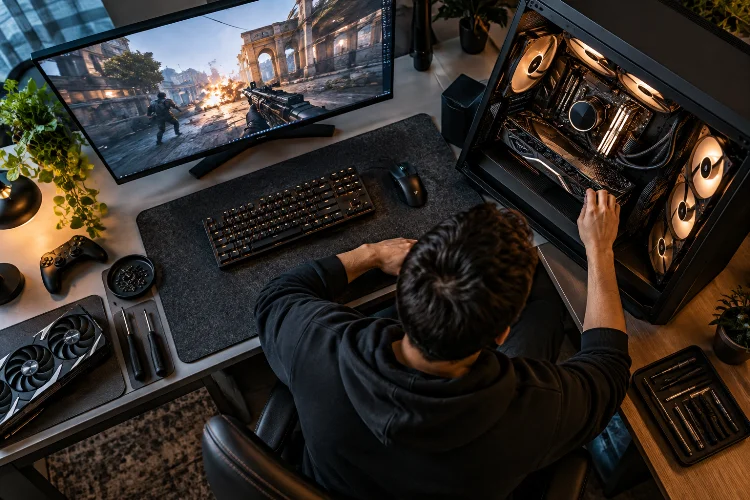
Picture this: you’re playing the final round of a competitive Counter-Strike 2 match. Your team is one victory away from winning, your aim feels perfect, and everything seems under control.
Then your frame rate suddenly drops.
Your opponent appears on-screen, but your mouse movement feels slightly delayed. Before you can react properly, the round is over.
Frustrating, right?
What makes situations like this especially annoying is that they don’t always happen because your gaming PC lacks powerful components. Sometimes, even expensive hardware struggles because the processor, graphics card, or system settings aren’t configured efficiently.
That’s where advanced GPU and CPU tuning strategies for competitive gaming become incredibly valuable.
Rather than blindly increasing clock speeds or purchasing expensive upgrades, proper hardware optimization focuses on consistent frame delivery, reduced input latency, stable temperatures, and efficient resource allocation.
Professional esports performance depends on reliability just as much as raw processing power.
In this guide, we’ll explore practical processor and graphics card tuning techniques, explain how to identify performance bottlenecks, and show you how to build a smoother competitive gaming experience without sacrificing system stability.
1. Understanding GPU and CPU Performance in Competitive Gaming
Before changing hardware settings, it’s important to understand what your processor and graphics card actually do during gameplay.
Both components contribute to performance, but they handle different responsibilities. Optimizing the wrong component can waste time while leaving the real problem untouched.
How the CPU Influences Competitive FPS
Your CPU handles tasks such as game logic, physics calculations, player movement, artificial intelligence, and preparing rendering instructions.
In competitive shooters, these calculations happen constantly.
Games like VALORANT and Counter-Strike 2 often benefit from strong CPU performance, particularly when players use lower graphics settings to pursue extremely high frame rates.
However, processor performance isn’t determined by clock speed alone.
Architecture, cache capacity, memory latency, thread scheduling, and game-engine optimization also influence how quickly frames can be prepared.
A processor running at a higher frequency isn’t automatically faster than another processor with a more efficient architecture.
Why GPU Performance Still Matters
The GPU transforms rendering instructions into the images displayed on your monitor.
Higher resolutions, complex shadows, detailed textures, and demanding visual effects generally increase graphics card workloads.
For example, moving from 1080p to 1440p increases the number of pixels rendered per frame by approximately 78%.
That additional workload can shift a game from being CPU-limited to GPU-limited.
This is why balancing both components matters more than maximizing one part of your system.
Intel’s guidance on PC bottlenecks emphasizes that balanced hardware allows individual components to operate more effectively.
The key takeaway is simple: understand what’s limiting your performance before attempting to increase it.
2. Identifying Hardware Bottlenecks Before Tuning
One of the most common optimization mistakes is immediately overclocking the graphics card when a game starts stuttering.
The problem might actually involve CPU scheduling, thermal throttling, memory configuration, or inconsistent frame pacing.
A proper diagnosis helps you avoid unnecessary changes.
Monitoring CPU and GPU Utilization
Start by observing hardware performance during actual gameplay.
Monitoring applications can display GPU utilization, CPU activity, clock speeds, temperatures, power consumption, and frame-rate statistics.
AMD Software: Adrenalin Edition, for example, provides real-time metrics and performance logging for compatible Radeon graphics cards and processors.
If your GPU consistently operates near full utilization during demanding scenes, increasing graphics processing capability or reducing GPU-heavy settings may help.
However, if GPU utilization remains relatively low while FPS is limited, investigate the CPU, memory, frame caps, and game-engine behavior.
Keep in mind that total CPU utilization doesn’t tell the whole story.
A game can become limited by one heavily loaded processing thread even when overall processor usage appears moderate.
Understanding Frame Times and 1% Lows
Average FPS is useful, but it doesn’t explain everything about gameplay smoothness.
Imagine two systems producing an average of 240 FPS.
One maintains relatively consistent frame delivery, while the other experiences occassional spikes that interrupt mouse tracking and visual movement.
Even with identical averages, the second system may feel noticeably worse.
At 240 FPS, the average frame interval is approximately 4.17 milliseconds. At 144 FPS, that interval increases to approximately 6.94 milliseconds.
Tracking frame-time graphs and 1% low FPS can reveal performance inconsistencies that ordinary averages hide.
Before making changes, record a baseline using a repeatable gameplay scenario.
That baseline becomes your reference for every adjustment that follows.
3. Advanced CPU Tuning for Better Gaming Performance
CPU optimization involves more than simply increasing processor frequency.
Modern processors already use sophisticated boost algorithms that adjust speeds according to temperature, power consumption, and workload.
Effective tuning works with these systems rather than fighting against them.
Using Intel Extreme Tuning Utility
For supported unlocked Intel processors and compatible platforms, Intel Extreme Tuning Utility provides tools for monitoring, benchmarking, stress testing, and performance adjustments.
Intel’s official guide recommends establishing baseline performance before changing frequency or voltage settings.
The safest approach is to make gradual adjustments and test each change seperately.
Increasing CPU multipliers may improve performance in processor-limited games, but higher frequencies can also increase power consumption and heat.
If a processor becomes unstable, reducing the overclock is often preferable to aggressively increasing voltage.
It’s also important to verify processor compatibility because not every Intel CPU supports the same tuning features.
Optimizing AMD Ryzen With Precision Boost Overdrive
AMD Ryzen processors offer another approach through Precision Boost Overdrive, commonly called PBO.
On supported hardware, PBO allows compatible processors to operate beyond certain default power or current limits when thermal and electrical conditions permit.
Rather than forcing every core to maintain one fixed frequency, this approach works with the processor’s dynamic boosting behavior.
However, increasing power limits doesn’t guarantee higher gaming FPS.
If a game already performs well within the default limits, additional power headroom may deliver little benefit while increasing temperatures.
Understanding Curve Optimizer
AMD’s Curve Optimizer allows supported Ryzen processors to modify their voltage-frequency behavior.
Negative curve adjustments can potentially reduce voltage requirements at particular operating points, creating opportunities for better efficiency or boosting.
AMD’s May 2026 Ryzen Master documentation describes all-core and per-core adjustment modes, depending on processor configuration.
But here’s something important.
An aggressive negative curve can appear stable during demanding benchmarks yet fail during lighter or rapidly changing workloads.
For that reason, test gaming sessions, idle behavior, and different processor loads before considering a configuration reliable.
The best CPU tuning profile isn’t necessarily the one with the highest benchmark score.
It’s the one that maintains predictable performance without crashes, calculation errors, or unexplained stuttering.
4. Advanced GPU Overclocking and Undervolting Techniques
Graphics card optimization offers several ways to improve competitive performance.
Traditional overclocking focuses on increasing operating frequencies, while undervolting attempts to reduce the voltage required for stable operation.
Both approaches can be useful, but their effectiveness depends on the graphics card and workload.
Finding Stable GPU Clock Speeds
GPU overclocking typically involves adjusting core frequency, memory frequency, or power limits.
Applications such as AMD Software: Adrenalin Edition offer automated and manual tuning options on supported graphics cards.
Begin by testing the graphics card at its default configuration.
Then make modest adjustments to one parameter and repeat the same benchmark.
Watch for visual artifacts, driver crashes, application instability, and unusual frame-time spikes.
A higher clock speed that produces frequent instability isn’t a meaningful competitive improvement.
Also remember that modern GPUs automatically boost their operating frequencies when sufficient temperature and power headroom are available.
Manual overclocking may produce smaller gains than expected when a graphics card already operates near its practical limits.
Why Undervolting Can Be Surprisingly Effective
Undervolting reduces operating voltage while attempting to maintain useful performance.
Because electrical power and heat generation are closely related, an efficient undervolt may reduce temperatures and power consumption.
This can help certain graphics cards maintain steadier boost behavior during extended gaming sessions.
For example, imagine a GPU that repeatedly reaches its thermal or power limits during demanding matches.
A carefully tested undervolt might reduce those limitations and improve consistency.
However, undervolting doesn’t automatically increase FPS, and excessively low voltage can cause instability.
AMD’s official GPU tuning documentation includes automatic undervolting for select compatible Radeon cards.
For manual adjustments, follow your specific GPU manufacturer’s guidance and avoid copying arbitrary voltage-frequency values from unrelated systems.
Should You Overclock GPU Memory?
Video memory frequency can influence performance when a game is constrained by memory bandwidth.
However, competitive titles running at lower resolutions aren’t always heavily memory-bandwidth limited.
Increasing VRAM frequency might deliver minimal benefits in some games.
Excessive memory overclocking can also introduce graphical errors, instability, or performance degradation.
Instead of pushing memory speeds simply becuase the option exists, compare actual gameplay results.
An improvement that cannot be measured consistently may not be worth the additional risk.
5. Reducing Input Latency Through Smart CPU and GPU Settings
Competitive gaming isn’t just about generating frames quickly.
It’s also about minimizing the delay between an input and its visible result.
That process involves the mouse, operating system, CPU, GPU, rendering queue, and monitor.
Understanding Render Queue Latency
Sometimes the CPU prepares frames faster than the GPU can display them.
This can create a queue of pending rendering work.
A longer queue may increase the delay between player input and the corresponding visual update.
NVIDIA Reflex addresses this problem in supported games by coordinating CPU and GPU workloads to reduce unnecessary rendering latency.
NVIDIA’s system latency guide recommends using in-game Reflex support when available on compatible hardware.
For games without Reflex, certain driver-level latency settings may offer alternatives, although their effectiveness varies.
The important distinction is that increasing FPS and reducing input latency are related but not identical goals.
Choosing Competitive Graphics Settings
Many competitive players reduce visual settings to improve frame rates.
This makes sense when graphics processing is the primary bottleneck.
Disabling expensive effects, reducing demanding shadow settings, and selecting an appropriate resolution can free GPU resources.
But lowering everything to minimum isn’t always ideal.
Some settings improve enemy visibility, while others have negligible performance costs.
The goal should be maintaining clear visuals while avoiding unnecessary rendering demands.
Using FPS Limits Strategically
An uncapped frame rate isn’t always the most comfortable configuration.
When GPU utilization remains near maximum, frame pacing and rendering latency may become less predictable.
A sensible FPS limit can sometimes reduce power consumption and help maintain more stable performance.
However, the best configuration depends on your game, GPU load, latency technology, and display synchronization settings.
Test capped and uncapped performance under comparable conditions.
If you use G-SYNC or FreeSync, remember that synchronization behavior can influence both smoothness and responsiveness.
There is no universal frame-rate cap that guarantees the lowest latency for every gaming system.
6. Managing Thermals, Power Limits, and Memory Performance
A successful overclock means very little if the computer slows down after twenty minutes of competitive gameplay.
Sustained performance depends on thermal management, electrical stability, and sufficient memory resources.
These supporting factors deserve as much attention as processor frequency.
Preventing CPU and GPU Thermal Throttling
Modern processors and graphics cards include protective systems that respond to temperature and power conditions.
Intel explains that thermal throttling reduces processor frequency when operating temperatures reach relevant protective thresholds.
This helps protect hardware but can also contribute to lower performance.
Monitor temperatures during extended gameplay rather than relying only on short benchmark runs.
Check whether clock speeds decline as temperatures increase.
Improving case airflow, cleaning dust filters, verifying cooler installation, and adjusting fan curves can sometimes restore performance without changing CPU or GPU frequencies.
Acceptable operating temperatures depend on the specific component, so consult its published specifications rather than following a universal temperature target.
Finding the Right Power Limit
Increasing a power limit can provide additional boosting headroom on compatible hardware.
However, higher power consumption also creates more heat.
If your cooling system cannot handle the additional thermal load, performance may become less consistent.
In some situations, a moderate power limit combined with efficient voltage tuning provides more dependable results.
Gaming laptops require particular care because their CPU and GPU often share limited thermal and electrical resources.
Changing one component’s power behavior can influence the performance available to the other.
Memory Speed and CPU Responsiveness
System memory also affects processor performance.
Games continuously access information stored in RAM, and memory latency or bandwidth limitations can influence certain CPU-heavy workloads.
Compatible Intel XMP or AMD EXPO profiles may improve memory performance compared with conservative default configurations.
However, these profiles involve memory overclocking and can introduce instability.
For competitive gaming, a stable memory configuration is more valuable than an aggressive profile that causes crashes or unexplained errors.
Remember to validate memory settings independently before evaluating CPU overclocking results.
7. Benchmarking, Stability Testing, and Long-Term Optimization
The final stage of advanced hardware tuning is also the most overlooked.
You need to prove that your adjustments improve real gaming performance.
Without structured testing, it’s easy to mistake random performance variation for a successful optimization.
Building a Repeatable Testing Process
Start with a consistent benchmark scenario from a game you regularly play.
Use the same resolution, graphics settings, map, and testing duration whenever possible.
Record average FPS, 1% lows, frame times, clock speeds, utilization, temperatures, and power consumption.
Run each test several times to reduce the influence of random variation.
Suppose your initial results show 260 average FPS and 175 FPS for 1% lows.
After tuning, the system produces 270 average FPS and 210 FPS for 1% lows.
Those hypothetical results suggest an improvement in both average performance and frame consistency, assuming the test conditions were comparable.
However, benchmark numbers alone don’t guarantee better gameplay.
You should still evaluate latency, visual clarity, and stability during real matches.
Stress Testing Beyond Gaming Benchmarks
A configuration that completes one benchmark isn’t definately stable.
CPU and GPU workloads can behave differently across games, loading screens, idle periods, and demanding applications.
Use appropriate stress-testing software to evaluate sustained operation.
Then test the specific games you play, including longer competitive sessions.
Watch for crashes, driver resets, graphical artifacts, system errors, and unexpected performance drops.
If an adjustment fails, return to the previous stable configuration rather than stacking additional changes on top of it.
Overclocking and voltage modifications can affect warranty coverage, component longevity, and system reliability, so always follow manufacturer guidance.
Maintaining Your Optimized Configuration
Once you’ve found reliable settings, save them in clearly named profiles where your software supports that feature.
Keep records of your baseline and final benchmark results.
After major graphics driver, BIOS, or game updates, repeat important tests to confirm that your configuration still behaves as expected.
Avoid constantly switching settings without a clear reason.
A dependable competitive system benefits from consistency because players can become familiar with how their games respond under different conditions.
Ultimately, hardware optimization should support better gameplay, not become a distraction from actually improving your skills.
Mastering advanced GPU and CPU tuning can make a meaningful difference in competitive gaming, especially when consistency and responsiveness matter more than impressive benchmark numbers.
The most effective approach starts with identifying performance bottlenecks, measuring frame-time behavior, and understanding how your processor and graphics card work together.
From CPU boost optimization and GPU undervolting to thermal management and latency reduction, every adjustment should serve a clear purpose.
Remember that aggressive overclocking isn’t always the smartest choice. A stable, efficient configuration can provide a better gaming experience than higher clock speeds accompanied by crashes or stuttering.
Ready to improve your competitive setup? Benchmark your current performance, experiment with one carefully chosen adjustment, and measure the results.
Your goal isn’t simply faster hardware. It’s smoother, more reliable gameplay when every decision counts.