
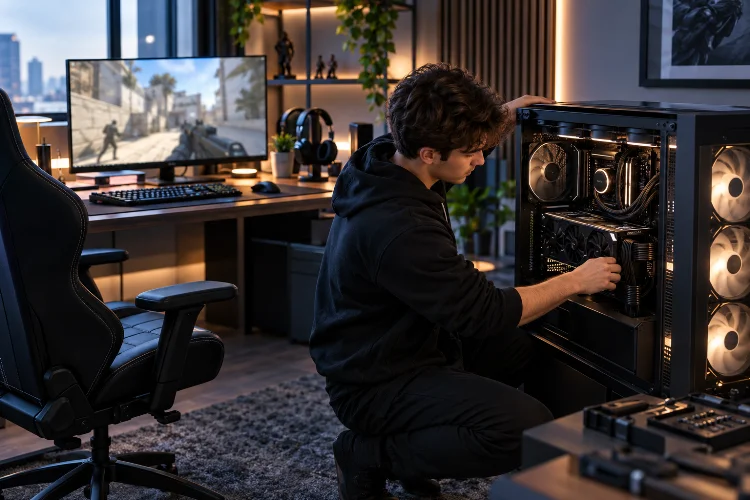
Imagine playing the final round of a competitive esports match. Your crosshair is perfectly positioned, you’ve predicted your opponent’s movement, and you’re ready to land the winning shot.
Then, out of nowhere, your game stutters.
That tiny delay is enough to turn a potential victory into a frustrating defeat. And while it’s tempting to blame your internet connection or teammates, the actual problem might be hiding inside your gaming setup.
In competitive esports, hardware performance isn’t just about achieving impressive benchmark scores. It’s about maintaining consistent frame rates, minimizing input delay, and making sure every action translates smoothly onto your screen.
That’s why advanced gaming hardware optimization has become an important part of serious competitive gaming.
Professional players and aspiring esports competitors understand that even powerful computers can underperform when configured incorrectly.
The good news? You don’t necessarily need expensive upgrades to improve your experience.
From processor tuning and graphics settings to monitor calibration and peripheral responsiveness, several practical adjustments can make your setup feel noticeably better.
Let’s explore how to optimize your gaming hardware for faster, smoother, and more reliable competitive performance.
1. Understanding What Hardware Performance Really Means in Esports
When discussing gaming performance, most players immediately think about frames per second, or FPS.
Higher FPS can certainly improve responsiveness, but it’s only one part of the equation. Competitive gaming performance also depends on frame consistency, hardware latency, and how efficiently your components communicate.
Why Frame Time Matters More Than You Think
Imagine two gaming PCs running the same esports title.
Both average 240 FPS, which sounds excellent. However, the first system maintains relatively consistent frame delivery, while the second experiences occasional spikes that create noticeable stuttering.
Despite their similar averages, the first computer will probably feel smoother.
That’s because frame time consistency plays a major role in perceived responsiveness.
At 240 FPS, each frame takes approximately 4.17 milliseconds to produce. At 144 FPS, that interval increases to roughly 6.94 milliseconds.
These differences might seem tiny, but they become relevant in games that demand precise tracking and split-second reactions.
Instead of focusing exclusively on average FPS, pay attention to frame-time graphs and 1% low FPS results. These measurements can help identify performance drops that ordinary averages conceal.
Understanding End-to-End System Latency
System latency describes the delay between performing an action and seeing its result on your display.
For example, clicking your mouse starts a process involving the peripheral, processor, graphics card, rendering pipeline, and monitor.
Each stage introduces some delay.
NVIDIA’s technical explanation of system latency separates this process into several components, including peripheral latency, game processing, rendering, and display output.
Optimizing only one component might produce limited improvements if another part of the system remains a significant bottleneck.
This is why serious competitive optimization requires a balanced approach rather than simply purchasing the fastest graphics card available.
2. Optimizing CPU and GPU Performance for Competitive Gaming
Your processor and graphics card are responsible for much of the work required to deliver responsive gameplay.
However, their importance varies depending on the game, resolution, graphics settings, and engine architecture.
Understanding their individual responsibilities makes performance tuning considerably easier.
Identifying CPU and GPU Bottlenecks
Competitive shooters such as Counter-Strike 2 and VALORANT can place significant demands on processor performance, especially when targeting extremely high frame rates.
Meanwhile, increasing resolution and visual quality generally adds more work for the graphics card.
Suppose you’re playing at 1080p with low graphics settings.
If your GPU isn’t close to full utilization but your frame rate remains limited, the processor or another part of the game engine may be restricting performance.
However, total CPU usage can be misleading because a game may saturate one important processing thread without using every available core.
Monitoring individual CPU activity, GPU utilization, and frame times gives you a clearer picture.
Finding the Right Graphics Settings
A common competitive gaming strategy involves reducing unnecessary visual effects to improve performance.
Shadows, volumetric effects, ambient occlusion, and demanding post-processing features can consume valuable GPU resources.
However, lowering every setting isn’t automatically the best solution.
Some visual options improve environmental clarity and help players identify opponents more easily. Others provide attractive effects without adding meaningful competitive value.
The ideal configuration balances visual readability with stable performance.
Start with a repeatable gameplay scenario, adjust one setting at a time, and compare the results before making additional changes.
Reducing Render Queue Latency
Modern graphics technologies can improve responsiveness by reducing unnecessary delays in the rendering pipeline.
NVIDIA Reflex, for example, coordinates CPU and GPU workloads to reduce render queue latency in supported games.
AMD Radeon Anti-Lag 2 follows a related approach through integration with compatible games.
These technologies can be especially useful when the GPU becomes heavily loaded, although their effectiveness depends on the game and system configuration.
If your favorite title supports an appropriate low-latency feature, test it using the same gameplay conditions before deciding whether to keep it enabled.
The goal isn’t to activate every performance setting available. It’s to discover which combination actually improves responsiveness.
3. Maximizing Monitor Refresh Rate and Display Responsiveness
Even a powerful gaming computer can feel sluggish when connected to a poorly configured monitor.
Your display determines how frequently new frames become visible and how clearly moving objects appear.
For competitive esports, these characteristics deserve serious attention.
Understanding Refresh Rate Advantages
A monitor’s refresh rate indicates how many times it can refresh its image each second.
A 60Hz display refreshes 60 times per second, while a 240Hz monitor refreshes four times as frequently.
Higher refresh rates can provide smoother motion and reduce the time between display updates.
According to RTINGS’ monitor research, improvements are generally more noticeable when moving from lower refresh rates, although benefits become progressively smaller at extremely high frequencies.
For example, upgrading from 60Hz to 144Hz typically creates a much larger change in frame intervals than moving from 240Hz to 360Hz.
That doesn’t mean extremely fast monitors are pointless.
For highly competitive players who can consistently generate enough frames, additional refresh-rate improvements may still be valuable.
Response Time vs. Input Lag
These two specifications are frequently confused.
Pixel response time describes how quickly pixels transition between colors. Input lag measures how long the monitor takes to begin displaying a received signal.
A monitor can perform well in one category while struggling in the other.
That’s why advertised response-time figures shouldn’t be treated as complete indicators of gaming performance.
Independent measurements often provide a more realistic understanding of motion clarity, overshoot, and display latency.
Configuring Your Monitor Properly
First, verify that your operating system is actually using the monitor’s intended refresh rate.
It’s surprisingly easy to purchase a high-refresh-rate display and accidentally leave it running at a lower setting.
Next, experiment with response-time overdrive options.
Extremely aggressive settings can create inverse ghosting, where moving objects develop distracting bright or dark trails.
Variable refresh rate technologies such as FreeSync and G-SYNC can reduce tearing when frame rates fluctuate within the supported range.
However, synchronization settings involve trade-offs between smoothness and minimum possible latency.
A sensible approach is to test your chosen competitive configuration rather than assuming one universal V-Sync or FPS-limit setting works for every system.
4. Fine-Tuning Gaming Mice, Keyboards, and Input Devices
Your computer might produce hundreds of frames every second, but that performance means little if your input devices feel inconsistent.
Competitive gaming peripherals influence precision, comfort, and the reliability of your actions.
Fortunately, effective optimization doesn’t always require premium equipment.
Mouse Polling Rate and Sensor Settings
Mouse polling rate describes how frequently the device reports its position to the computer.
At 1,000Hz, the nominal polling interval is one millisecond. At 4,000Hz, the interval decreases to 0.25 milliseconds.
Higher polling rates may improve input granularity, but they don’t guarantee equivalent reductions in total system latency.
They can also increase CPU processing demands, and some games or systems may not handle extremely high rates equally well.
For most players, a stable 1,000Hz connection is already a practical starting point.
Beyond polling frequency, consistency matters enormously.
Choose a comfortable DPI, avoid unwanted pointer acceleration where precise raw input is desired, and maintain the same sensitivity long enough to develop muscle memory.
Mouse Sensitivity and Physical Control
There isn’t one magical sensitivity setting that guarantees better aim.
A low sensitivity can help with precise adjustments, while a higher setting may make rapid movements easier.
What matters is finding a balance suited to your game, available desk space, and individual aiming style.
For tactical shooters, many players evaluate effective sensitivity using eDPI, which combines mouse DPI with the game’s sensitivity multiplier.
Because games use different sensitivity scales, those values shouldn’t be compared directly across unrelated titles without conversion.
Keyboard Responsiveness and Comfort
Mechanical and optical keyboards offer different switch designs, actuation characteristics, and customization options.
Some modern gaming keyboards support adjustable actuation points or rapid-trigger behavior, allowing keys to reset with very small movements.
These features can feel useful in movement-heavy games, but they aren’t substitutes for good mechanics.
Keyboard positioning is equally important.
A comfortable wrist angle, sufficient mouse space, and consistant hand placement can make long practice sessions easier.
Also remember that some competitive events restrict particular input-assistance features. Always check tournament rules before relying on advanced keyboard functions.
5. Optimizing RAM, Storage, and Operating System Settings
Hardware optimization goes beyond the processor and graphics card.
Memory configuration, background applications, and operating system behavior can influence how consistently your computer performs.
These factors are especially relevant when diagnosing unexplained stutters.
Getting More From Your System Memory
Random access memory provides temporary storage for information your games need while running.
Insufficient capacity can force the system to rely more heavily on slower storage, potentially creating performance interruptions.
For many modern competitive gaming PCs, 16GB remains a workable baseline, while 32GB offers additional breathing room for multitasking, demanding titles, and background applications.
Actual requirements depend on your games and software workload.
Memory configuration also matters.
Compatible dual-channel memory arrangements can improve bandwidth, while Intel XMP and AMD EXPO profiles allow supported systems to apply predefined memory speeds and timings.
However, these profiles are forms of memory overclocking, and stability isn’t guaranteed.
Enable only profiles supported by your hardware, then verify that the system remains reliable through extended testing.
Does Faster Storage Improve FPS?
Installing games on an SSD can dramatically improve loading times compared with older mechanical hard drives.
It may also help with asset streaming in certain games.
However, upgrading from an already capable SSD to a much faster model doesn’t automatically produce higher FPS during normal gameplay.
Storage performance and rendering performance are different concerns.
Make sure your drive has adequate free space and remains healthy, but prioritize upgrades based on observed bottlenecks.
Windows Gaming Optimization
Operating system configuration can influence how efficiently games access system resources.
Microsoft provides Windows 11 optimizations for compatible DirectX 10 and DirectX 11 games operating in windowed or borderless modes.
These features use a more modern presentation model that can reduce frame latency in supported situations.
You can find the relevant controls under Settings > System > Display > Graphics.
For computers with integrated and dedicated graphics, also verify that the game uses the intended high-performance GPU.
Windows Game Mode is worth testing, while unnecessary background downloads, overlays, and resource-intensive applications should be minimized.
Avoid random registry modifications or unofficial optimization scripts that promise miraculous FPS increases.
Many produce negligible improvements, create compatibility problems, or make troubleshooting unnecessarily complicated.
6. Managing Cooling, Power Delivery, and Network Stability
Competitive performance isn’t just about achieving impressive speeds for a few seconds.
Your system needs to sustain reliable operation throughout long matches, scrimmages, and training sessions.
That makes thermal management and system stability essential.
Preventing Thermal Throttling
Modern processors automatically adjust performance according to temperature and power conditions.
Intel explains that thermal throttling can reduce processor clock speeds when operating temperatures reach protective limits.
This behavior helps prevent overheating, but it can also contribute to inconsistent performance.
Start by checking whether your temperatures and clock speeds remain stable during extended gameplay.
Poor airflow, excessive dust, incorrectly mounted cooling equipment, or inadequate fan configurations can all interfere with sustained performance.
Cleaning filters, improving cable management, and checking cooler installation may provide more practical value than aggressive overclocking.
Power Settings and Stability
Desktop gaming systems should use appropriate power configurations that don’t unnecessarily restrict performance.
On gaming laptops, power limits can vary dramatically between plugged-in and battery operation.
For competitive play, using the correct charger and a suitable performance profile is often important.
However, maximum power consumption doesn’t always equal maximum practical performance.
A slightly more conservative GPU configuration might maintain steadier clocks and lower temperatures than an unstable overclock.
If you experiment with undervolting or tuning, change settings gradually and test them seperately.
Reliability should always come before impressive benchmark screenshots.
Don’t Ignore Your Network Hardware
A perfectly optimized computer can still struggle in online matches when its network connection becomes unstable.
High latency, packet loss, and jitter affect online communication, even when local frame rates remain excellent.
Intel recommends checking background bandwidth usage, router connections, and possible Wi-Fi interference when troubleshooting packet loss.
Whenever practical, a wired Ethernet connection can help reduce wireless interference and connection variability.
It’s also worth checking router firmware, damaged cables, and household downloads that could introduce congestion.
Remember that hardware improvements cannot eliminate delays caused by distant game servers or problems elsewhere on the internet.
Separating network issues from local rendering problems is an important troubleshooting skill.
7. Benchmarking and Building a Reliable Esports Optimization Routine
The biggest mistake in hardware tuning is changing several settings simultaneously and assuming the computer feels better afterward.
Human perception isn’t always reliable when comparing small performance differences.
A structured testing routine produces more useful information.
Establish a Performance Baseline
Before making major changes, record your current performance.
Choose a repeatable in-game benchmark, replay, or practice scenario that reasonably represents competitive gameplay.
Monitor average FPS, 1% low FPS, frame times, CPU and GPU utilization, and component temperatures.
If supported measurement tools are available, record latency metrics as well.
Run the same scenario multiple times because a single test may contain random variations.
Document your settings so you can restore the original configuration when necessary.
Change One Variable at a Time
Suppose you want to compare two graphics configurations.
Keep the resolution, map, testing duration, and background applications as similar as possible.
Change only the setting you want to evaluate.
Then compare the resulting performance measurements rather than relying entirely on how smooth the game appears.
This simple process helps prevent incorrect conclusions.
It also makes identifying the cause of unexpected performance changes much easier.
Prioritize Consistency Over Maximum FPS
Imagine testing two configurations in the same competitive shooter.
One averages 310 FPS but occassionally experiences severe frame-time spikes. The other averages 285 FPS with significantly smoother frame delivery.
Depending on the measured latency and the severity of those spikes, the second configuration may provide a better competitive experience.
This is why performance optimization shouldn’t become an endless competition for the highest numerical result.
Your real target is predictable responsiveness.
Create a Long-Term Maintenance Routine
Once you’ve established a stable configuration, avoid constantly changing it.
Update graphics drivers when necessary, particularly when newer versions address problems affecting your games.
Keep firmware and operating system updates under control, and review release notes before changing important settings.
After major updates, perform another benchmark to check for unexpected performance differences.
You should also inspect cooling systems periodically and maintain enough storage space for normal operation.
Finally, keep a copy of your reliable configuration, including graphics settings, mouse sensitivity, refresh rate, and important system adjustments.
If a future update causes problems, having those details makes recovery much easier.
Good hardware calibraton isn’t a one-time trick. It’s an ongoing process of measuring, adjusting, and maintaining a system that performs reliably when competition becomes intense.
Advanced gaming hardware optimization is about creating a setup that responds consistently when every millisecond matters.
While powerful components can provide an advantage, effective configuration is equally important. Stable frame times, appropriate graphics settings, responsive peripherals, efficient cooling, and reliable networking all contribute to a better competitive experience.
More importantly, improving performance doesn’t always require buying expensive equipment.
Sometimes, correcting your monitor’s refresh rate, reducing unnecessary background activity, or resolving thermal problems can make a meaningful difference.
The smartest approach is to measure your current performance, identify genuine bottlenecks, and make carefully tested improvements.
Ready to improve your competitive gaming setup? Start with one optimization today, compare your results, and build a configuration that delivers dependable performance match after match.
Your hardware should support your skills, not hold them back.